Preparing hosts for monitoring
Before Energy Monitor can be utilized to monitor an endpoint, it must be pre-configured first.
The steps differ, depending on what operating system it runs on.
Preparing Windows endpoints
Administrative priviliges on the host are required to implement the following instructions.
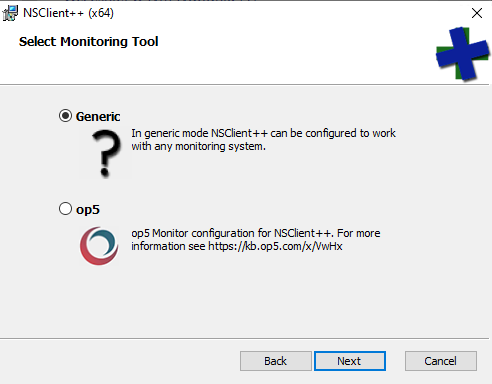
Energy Monitor utilizes NSClient++ for monitoring Windows based hosts, download it from NSClient++ website and install on the host as shwon on the following screens:
Choose “Generic”
Under “Allowed Hosts” you need to place the IP address of your server where Energy Monitor is installed.
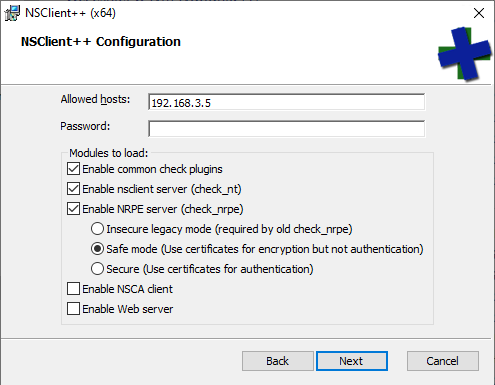
Depending on the local security protocols in the company, Insecure, Safe or Secure can be chosen as preferred.
Insecure is a mode without encryption or strong authentication, therefore it's vulnerable to interception or spoofing. It is recommended to implement additional security measures in the network that protect against such threats.
Safe Mode utilizes certificates to encrypt the communication. However, there isn't any method of authentication present in this mode. External means of authenticating traffic are advised.
Secure Mode utilizes certficates for both, encryption and authentication. Therefore traffic is encrypted and connections authorized before sending data.
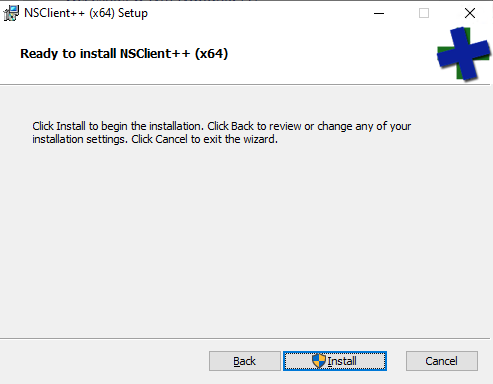
Configure NSClient++
After the agent has been installed, default path being C:\ProgramFiles\NSClient++, it’s configuration file, nsclient.ini needs to be edited.
# If you want to fill this file with all available options run the following command:
#   nscp settings --generate --add-defaults --load-all
# If you want to activate a module and bring in all its options use:
#   nscp settings --activate-module <MODULE NAME> --add-defaults
# For details run: nscp settings --help


; in flight - TODO
[/modules]

; Undocumented key
NSClientServer = enabled

; Undocumented key
CheckEventLog = enabled

; Undocumented key
CheckNSCP = enabled

; Undocumented key
CheckSystem = enabled

; Undocumented key
CheckDisk = enabled

; Undocumented key
NSCAClient = enabled

; Undocumented key
WEBServer = enabled

; Undocumented key
NRPEServer = enabled

; Undocumented key
CheckExternalScripts = enabled

; Undocumented key
CheckHelpers = enabled


; in flight - TODO
[/settings/NRPE/server]

; Undocumented key
verify mode = none

; Undocumented key
insecure = true

;arguments yes
allow arguments = true

; in flight - TODO
[/settings/default]

; Undocumented key
allowed hosts = 192.168.3.166

[/settings/log]
level = debug
- Change the allowed hosts section to the IP address of your mainframe (a host where your EnergyMonitor installation is located).
- Turning on all modules is recommended for futureproofing.
- Allow arguments option is crucial, because it allows arguments to be passed in the queries to the agent, which results in specific metrics, tuned in to company needs.
Preparing Linux endpoints
1. Update and/or install the following packages:
sudo apt update  # For Debian/Ubuntu

sudo yum update  # For CentOS/RHEL
2. Install NRPE and Nagios plugins:
sudo apt install nagios-nrpe-server nagios-monitoring-plugins  # For Debian/Ubuntu

sudo yum install nrpe nagios-plugins-all  # For CentOS/RHEL
3. Configure NRPE:
Enter NRPE’s configuration file, by default in (Oracle, RHEL and the like) /etc/nagios/nrpe.cfg, open it with a text editor like vi, nano, vim and such.
Just like in the case of Windows hosts, add the IP address of your mainframe under “allowed hosts” directive.
example syntax: allowed_hosts=127.0.0.1,ENERGY_MONITOR_SERVER_IP
4. Optional: Configure commands
Nrpe.cfg allows you to set commands, that can be invoked directly from the host’s shell. Energy Monitor invokes commands remotely, however if one prefers, there does exist an option to configure all desired metrics locally on the host. This method assumes the administraotr placed the necessary plugins in /usr/local/nagios/libexec and chnaged command definitions in nrpe.cfg. In functionality, it is very similar to an Alias.
example syntax: command[check_load]=/usr/lib/nagios/plugins/check_load -w 5,4,3 -c 10,8,6
5. Restart the nrpe service
sudo systemctl restart nagios-nrpe-server # For Debian/Ubuntu
sudo systemctl restart nrpe # For CentOS/RHEL