Integrating Microsoft Teams with Energy Monitor
Energy Monitor allows for sending for notifications from hosts and services to your Microsoft Teams server.
In order to set it up the following must be done:
Note: You must have access to Power Automate, therefore you must have acquired Office365 license.
Setting up
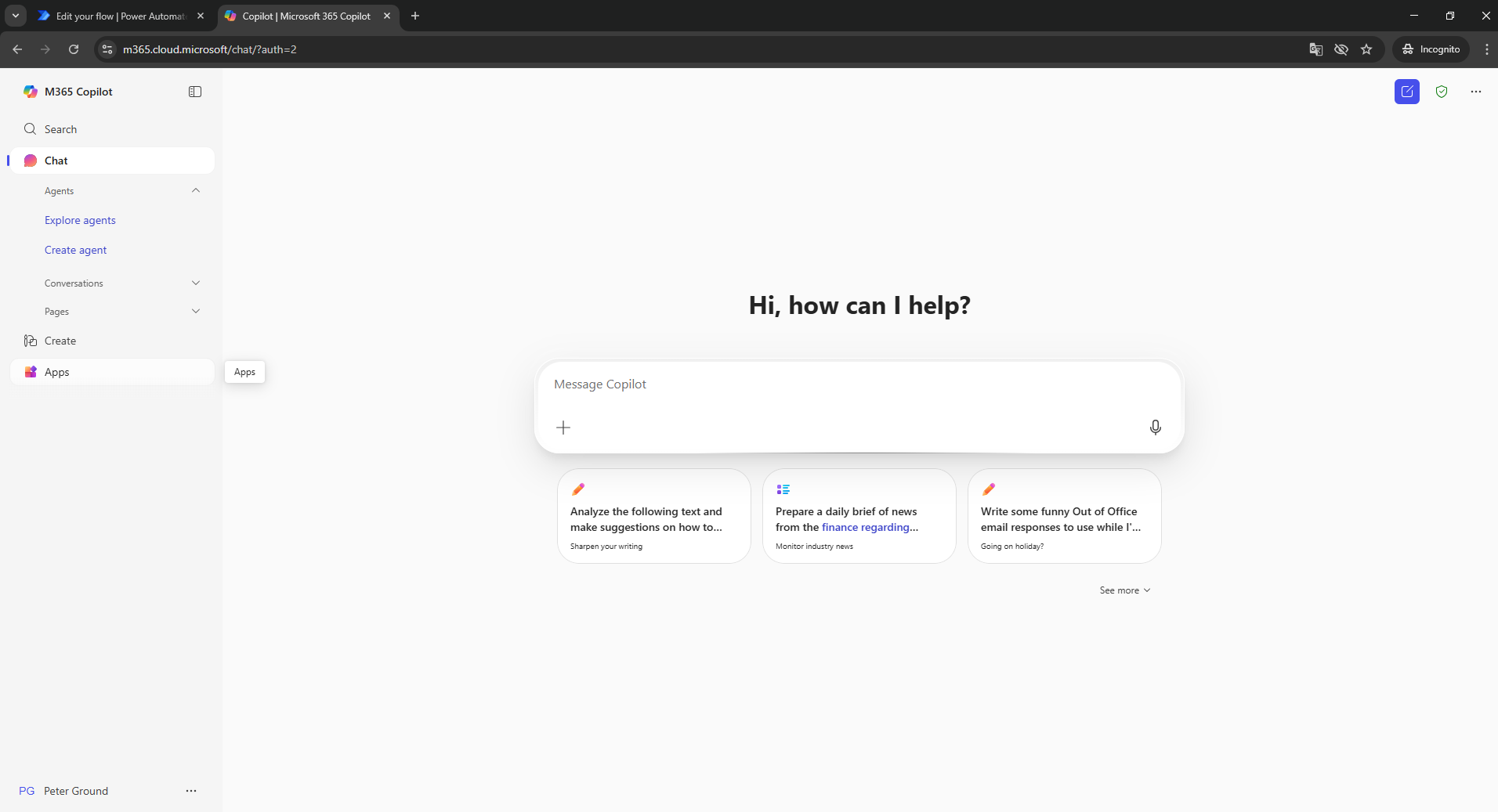
Enter “M365 Copilot” -> “Apps” -> “Power Automate”
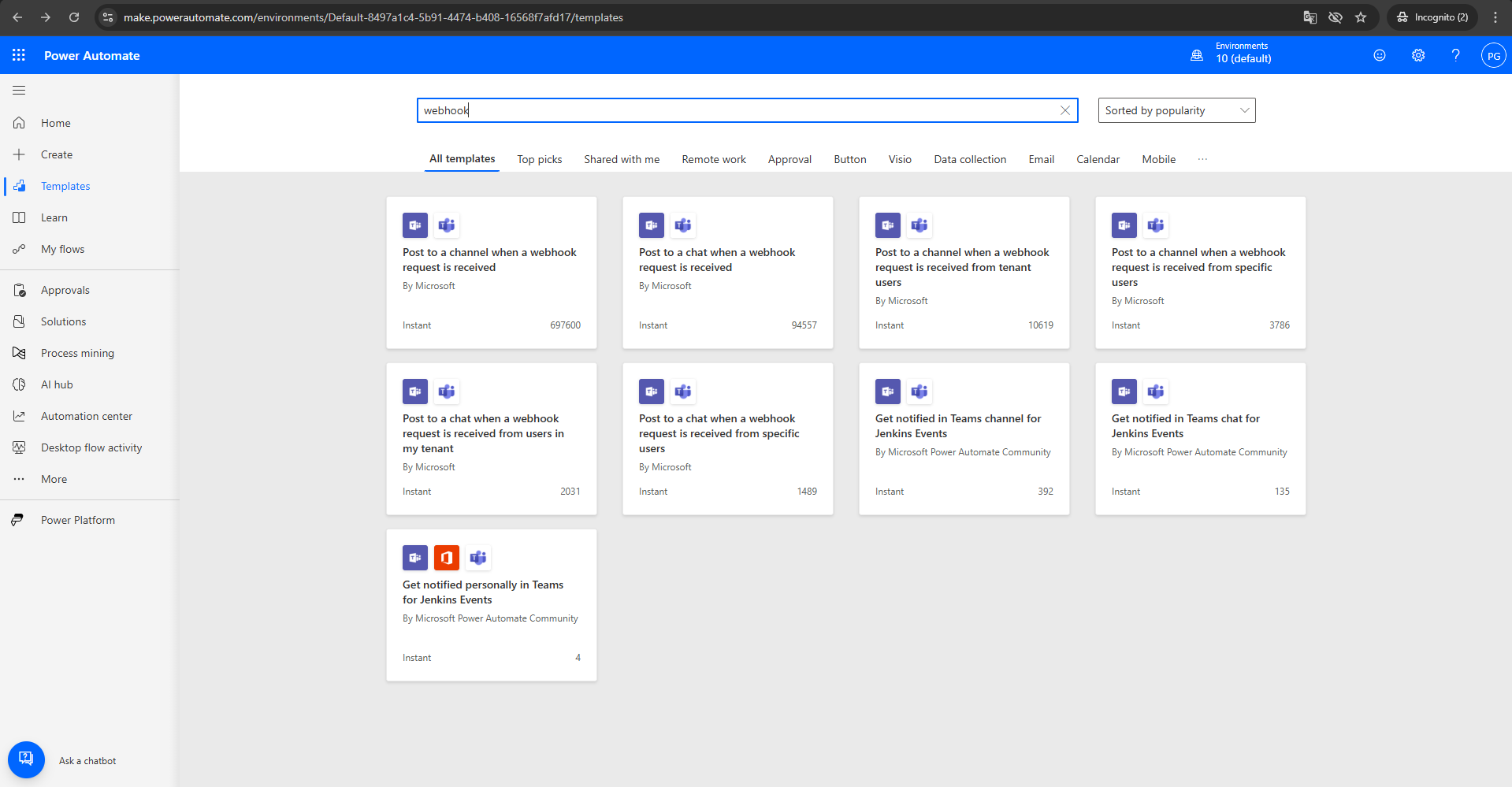
Enter “Templates” -> “Search Webhook” -> “Post to a chat when a webhook request is received”
Note: Energy Monitor accepts only webflows with ID 94557.
“Create” -> “Edit” -> “When a Teams webhook request is received”
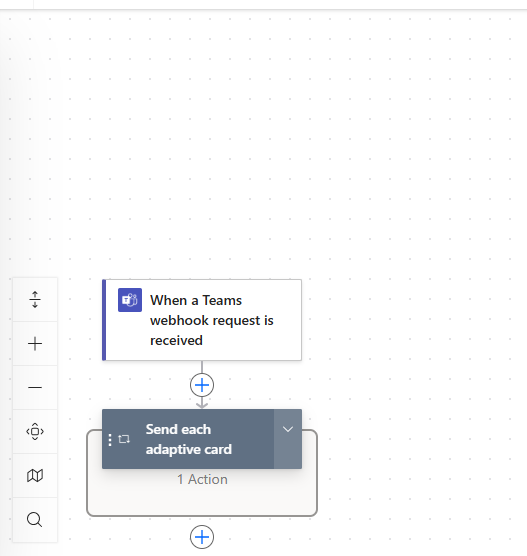
“Copy the url under “HTTP URL field”” and “Save”
In Energy Monitor “create a contact”:
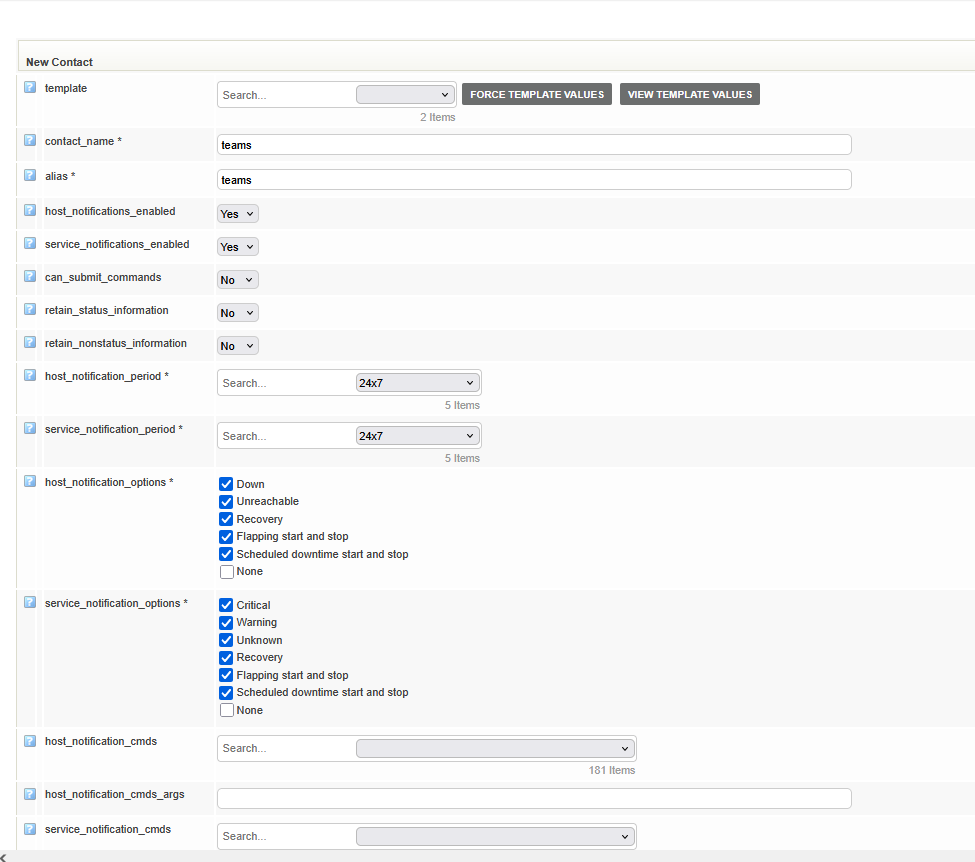
What we want from this section is the “Webhook”, which is a method for sending data in real-time using HTTPS requests, with the POST method.
Webhook, the URL, must be placed as the value of a custom variable named “_WEBHOOK”

In Microsoft Teams, in Workflows sub-app, You need to add the Webhook onto a team and channel, chosen for receiving notifications.
On the screenshot, the chosen option states to send an email when an event created by the workflow, occurs.
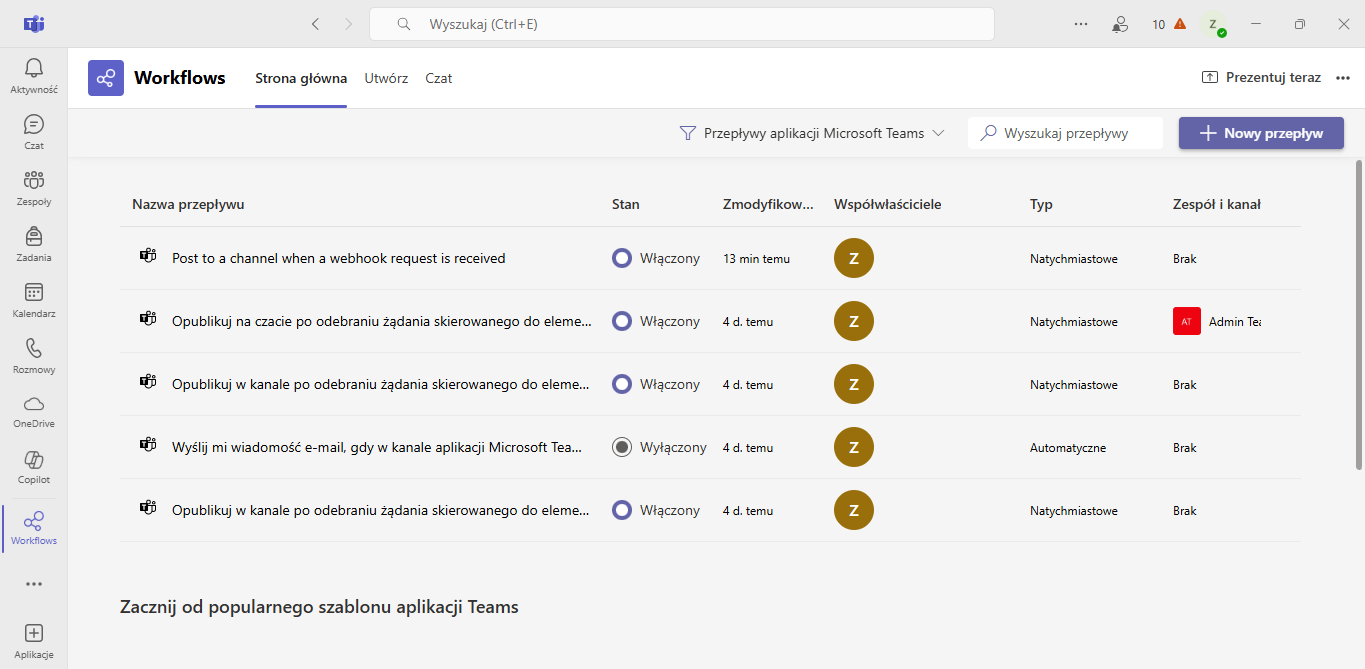
If done correctly, the chat in the channel will be able to receive notifications from Energy Monitor.
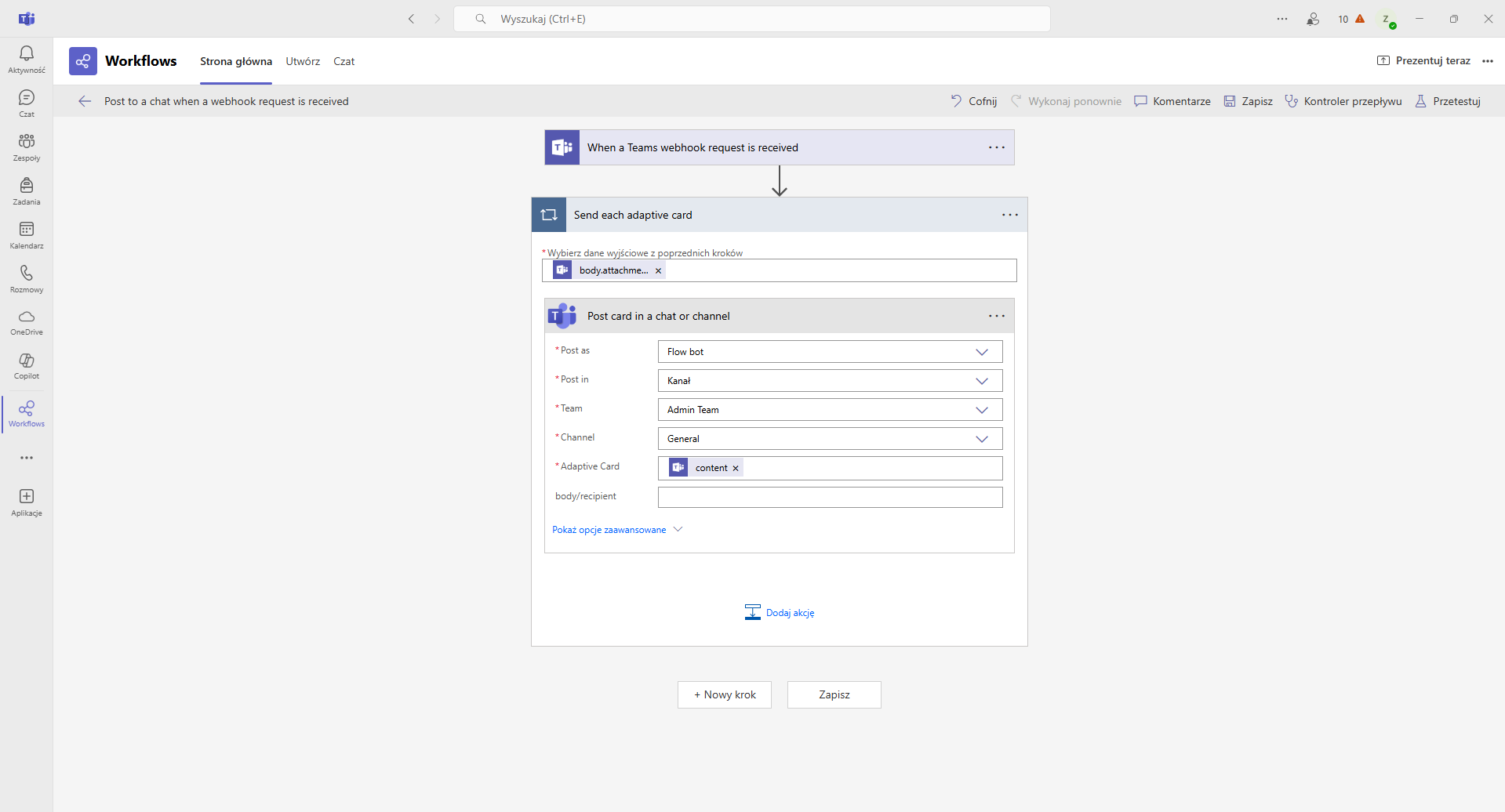
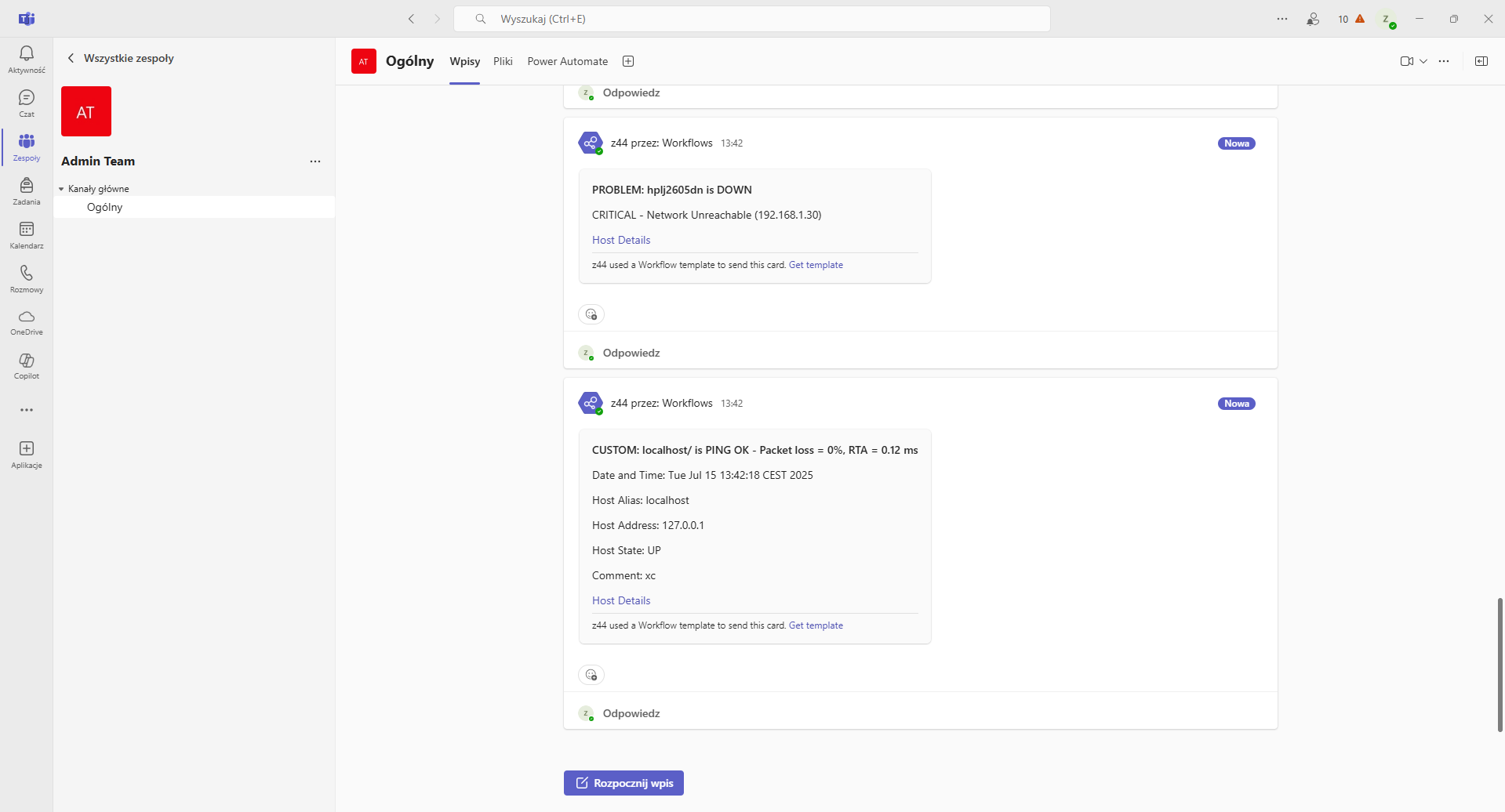
Note: Please be mindful to pick the option with the ID of 94557.