Schedule reports
Energy Monitor can periodically send “SLA”, “Availability Reports” and “Alert Summary” reports.
Enter “Report” -> “Schedule report”
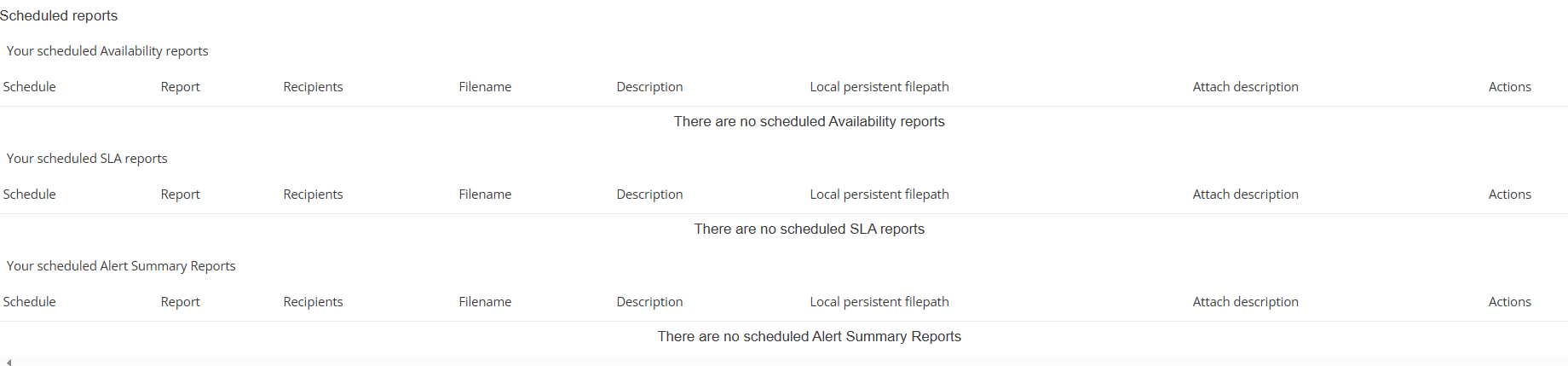
In this menu you will also see every scheduled report.
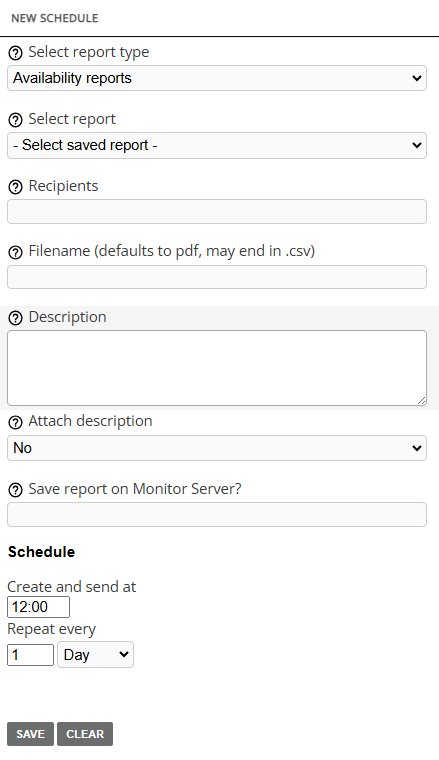
Setting the schedule up
You need to create, generate and save into the Energy Monitor database, the report of which you wish to schedule. It will serve as a blueprint, so that Energy Monitor knows what sort of data it is suppsoed to gather.
Afterwards, choose the type of your report under “Select Report type”
Under “Select Report”, pick your desired report.
You can send your report to a single recipient via an email or multiple recipients, under “Recpients” field. Separate each e-ail address from the next, with a “,” sign.
“Filename” field allows you to specify the name for your report. 2 formats are available, PDF and CSV. By default PDF is generated, regardless of name. However, if you wish to generate a CSV file, make sure your name ends in .csv.
ie. my_test_report.csv
“Description” field allows you to insert a plain text explanation of what this report does, what it consists of, etc.
“Attach description” will append your description to the general description which is automatically generated for each report.
“Save report on Monitor Server?” field allows you to specify where on the mainframe should the report be saved. Absolute paths are mandatory, ie. /home/reports.
You can then choose the hour at which the report will be generated, when, etc.