Geomap
Energy Monitor allows the display of specified point of interest on the world map. If you have hosts or services in different locations, you can add them as pins on the map, the pins will display their current status, the same way it would be shown in “Monitor” -> Hosts -> All Hosts menu.
Setting up the Geomap
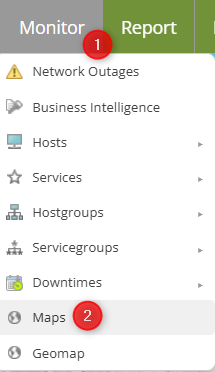
Enter “Monitor” -> Geomap
Controls
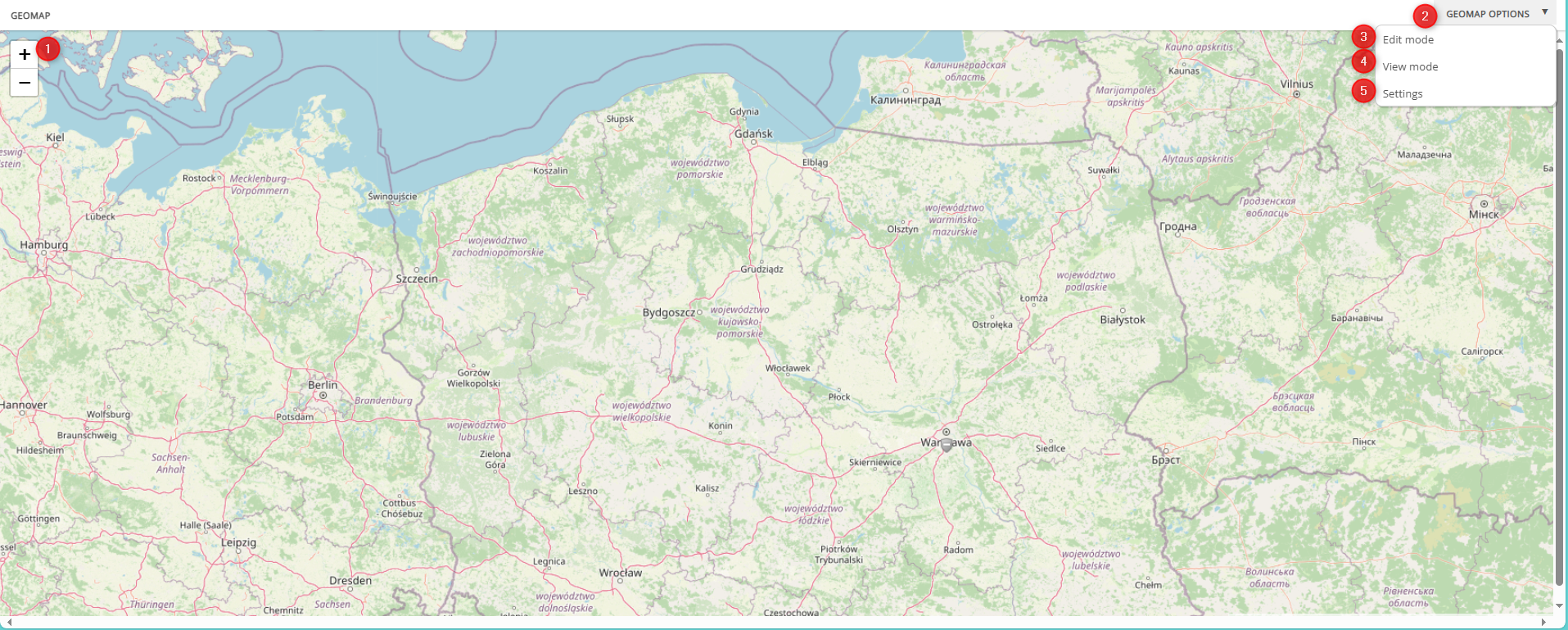
1. Zoom In/Out

You can zoom the map in and out using these buttons or using the mouse scroll wheel.
2. Map Options
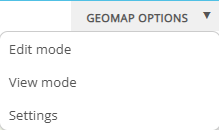
Edit Mode
Edit mode will allow the administrator to place a “pin” on the map, by double clicking the left mouse button. You can tell if the edit mode is active because the mouse pointer will change the icon to a hand.
After double clicking, you will be prompted to add the location
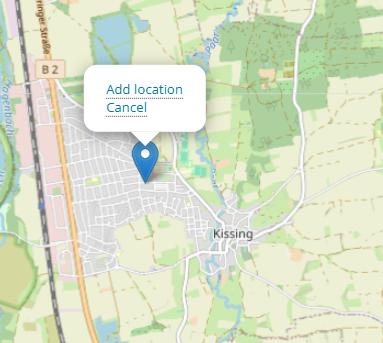
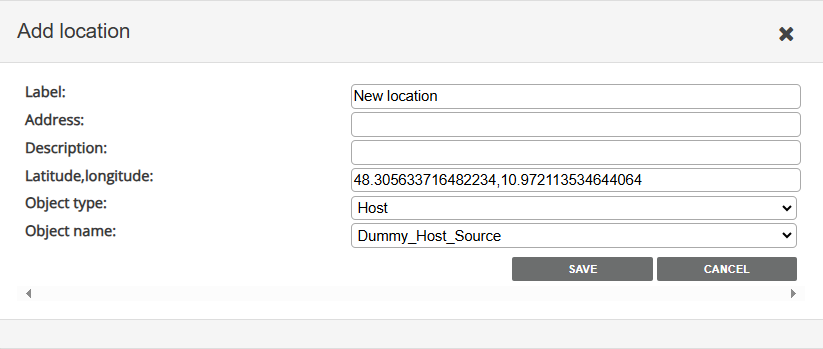
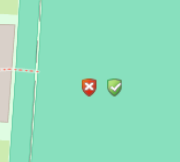
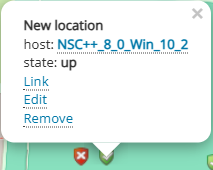
The administrator can add several descriptions to the pin, such as address, geographical coordinates, what sort of object the pin is referring and picking a specific object from the Energy Monitor database.
Coordinates are calculated automatically.
Object’s status will reflect it’s actual status.
Note: Refresh rate of the site can be set up under "Settings"
Object type can be assigned value of:
Host
Hostgroup
Service
Servicegroup
View Mode
Refreshes the site
Settings
In this menu you can change a provider and the refresh rate of the geomap
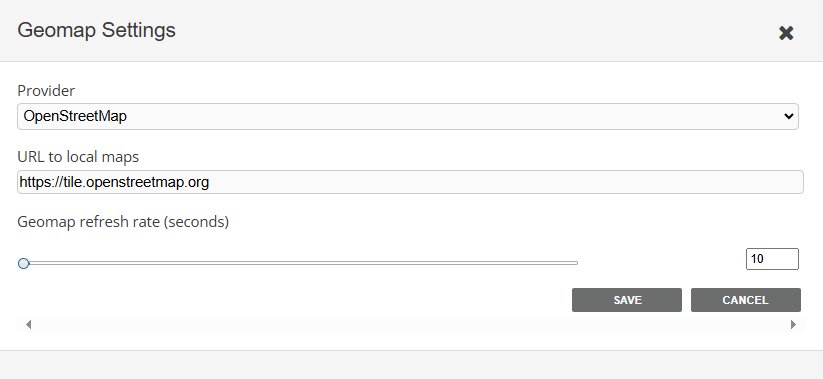
Note: Out of the box, only OpenStreetMap is fully supported.
Link
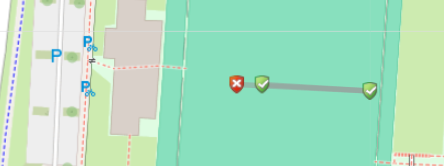
After placing a ping you will can link them together. Link is shown as a purely visual grey line, and there is no underlying logic behind it.
An example usage scenario could be placing a specifc switch interface as a pin in location A, then a second interface, connected to the first one, in location B, to help visualize this connection.