User Manual
Configuration tasks can be carried out either through the Energy Monitor user interface or via the command line. These tasks should only be performed by users with the necessary experience and permissions, particularly when using the command line.
Configuration Page
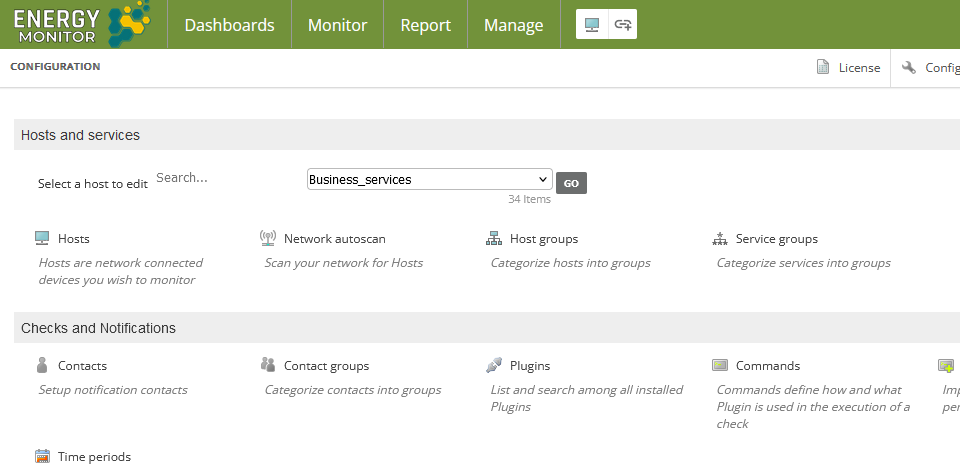
Most of Energy Monitor’s key configuration functions can be found on the configuration page, accessible by clicking Manage -> Configure.
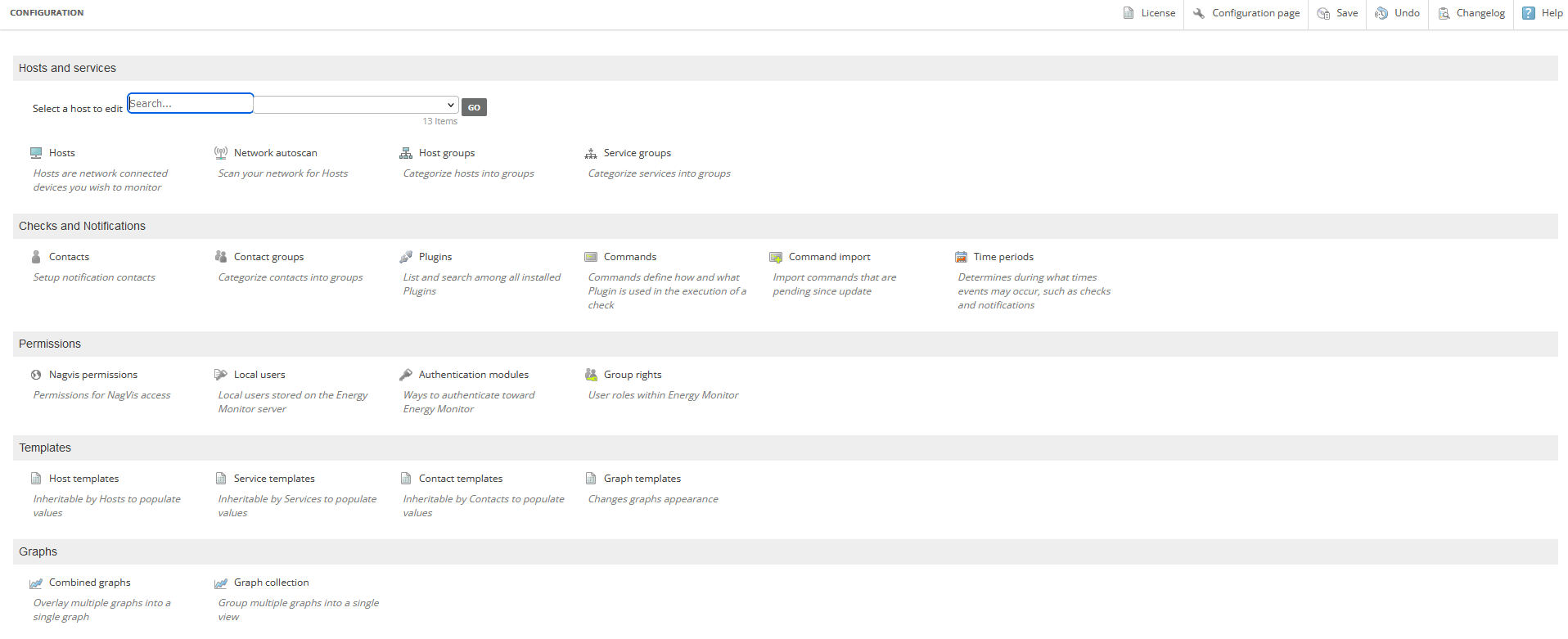
From the configuration page, you can manage the following:
Monitoring objects
Users, contacts, and permissions
Reusable objects: This includes templates, time periods, management packs, and commands. For more details, see Reusable configuration.
Graphs
Additional tasks you can perform:
Search for an existing host to configure.
View a list of plugins along with their support details.
Common Configuration Features
Different configuration functions share some common features:
Search field: Enter an existing configuration object to edit, or click New for a new configuration.
Related items links: Access related configuration items from the links on the right.
Object type menu: Switch between configuration pages for different object types using the menu on the right.
File ID field: Located at the bottom of the configuration values, this field specifies the system configuration file in the /etc directory where the configuration is stored, such as
/etc/hosts.cfg.
Note: It is not recommended to update the system configuration file directly.
Configuration Shortcuts
Energy Monitor provides several shortcuts to streamline the configuration process:
Clone objects
Copy objects
Propagate settings from one object to other objects of the same type
Delete objects
Bulk delete objects
You can switch between object types using the Object type menu to view and configure related items. These shortcuts work consistently across all object types.
Saving Configuration Changes and Viewing the Changelog
To save your configuration changes, click Save in the top bar of the configuration page. Energy Monitor usually saves most configuration objects to the configuration database, with some exceptions such as the Permissions section. Visual cues indicate when you need to save a configuration, as explained in the workflow below:
Click an object on the configuration page and make changes.
Click Submit.
Repeat steps 1 and 2 as needed.
Click Save in the top bar of the configuration page to save all your changes and those made by other users.
When there are unsaved changes, the number of unsaved changes appears next to the Save button, and details are displayed next to the objects with unsaved changes.
Note: Users need export permissions to save changes.
Additional actions you can perform:
Undo: To revert all user changes since the last save, click Undo. This action provides the option to perform a complete reimport by clicking the displayed link.
Changelog: View the history of all configuration changes by clicking Changelog. Filter the list of changes by clicking Toggle filter bar and entering details of users, objects, and dates. Users with limited permissions will only see changes on hosts and services for which they are contacts.
Reusable Configuration
You can set up the following reusable configurations for use with other objects:
Time periods
Templates
Commands
Energy Monitor comes with default reusable configurations for each of these types. You can either use these default settings, modify them, or create your own custom configurations.
View active config
To view the details of the current configuration, select Manage > View active config from the menu. Use the Object type drop-down list to choose the specific object you wish to view.
You can view configurations for the following types:
Hosts
Services
Host groups
Service groups
Contacts
Contact groups
Time periods
Commands
To filter the displayed objects, enter a term in the filter field and click Filter. Additionally, you can click on links within the view to access details of related object configurations. For example, clicking a link in the Host Check Command column will take you to the related commands view.
Commands and custom variables
You can define command lines and create custom variables when setting up configuration objects, including templates, hosts, services, and contacts.
Configuration synchronization in distributed environment
In a distributed or load-balanced monitoring environment, Energy Monitor’s Merlin back end manages the synchronization of configuration updates on the master server.
Overseeing Hosts and Services
The following procedures outline how to add, update, and configure monitoring objects, including:
Hosts and host groups
Services and service groups
The sequence in which you create hosts, services, and their respective groups does not matter. For instance, you can add a host to an existing host group or create a new host group and then add a host to it. Additionally, a host can be added to multiple groups.
Note: Configuration changes are not finalized until you click Save, which saves your changes to the Energy Monitor database. For more details, refer to Saving configuration changes and viewing the changelog in the Introduction to configuration.
Caution: Using the user interface to configure Energy Monitor objects is the only supported method for updating object configurations in Energy Monitor. We do not support direct modifications to object configuration files. Energy Monitor uses Livestatus to parse configuration files, and manual changes to these files can cause conflicts with Livestatus data and API calls. However, advanced users can create custom configuration files.
For background information on hosts, services, host groups, and service groups, see Monitoring objects in Overview of Energy Monitor.
Procedure for Adding Windows Hosts to the Energy Monitor System
Adding Windows hosts to the Energy Monitor system requires several steps, which include installing the necessary software, configuring the monitoring agent, and verifying the connection. Below is a detailed procedure:
Step 1: Prepare the Windows Host
Ensure you have administrative access to the Windows host: You need administrative privileges to install software on the Windows host.
Install the required tools:
Download and install NSClient++ (a monitoring tool for Windows systems) from the NSClient++ website.
Step 2: Install and Configure NSClient++
Install NSClient++:
Run the downloaded installer and follow the installation instructions. Choose options such as installing it as a Windows service.
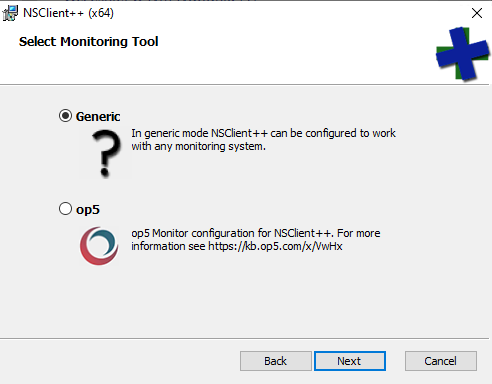
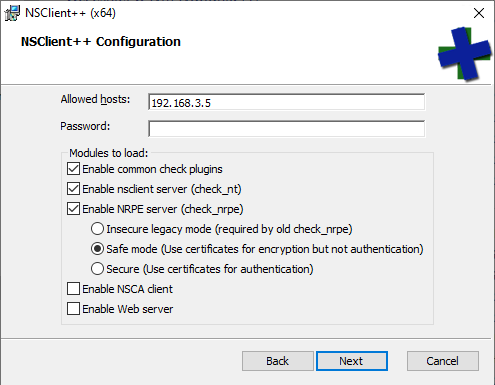
Provide atleast one ip of Energy Monitor instance.
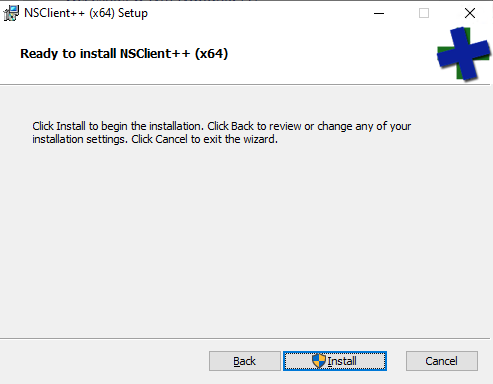
Confirm start of installation process.
Configure NSClient++:
Open the configuration file nsclient.ini, typically located in the NSClient++ installation directory (e.g., C:\Program Files\NSClient++).
Edit the configuration file to allow communication with the Energy Monitor server. Ensure that the appropriate modules are enabled, such as NRPE and CheckExternalScripts.
Example configuration:
[/settings/default]

; Undocumented key
allowed hosts = 192.168.3.5


; in flight - TODO
[/settings/NRPE/server]

; Undocumented key
ssl options =

; Undocumented key
verify mode = none

; Undocumented key
insecure = true

; Allow Arguements
allow arguments = true

; Allow nasty chars
allow nasty characters = true


; in flight - TODO
[/modules]

; Undocumented key
CheckExternalScripts = enabled

; Undocumented key
CheckHelpers = enabled

; Undocumented key
CheckEventLog = enabled

; Undocumented key
CheckNSCP = enabled

; Undocumented key
CheckDisk = enabled

; Undocumented key
CheckSystem = enabled

; Undocumented key
NSClientServer = enabled

; Undocumented key
NRPEServer = enabled
Restart the NSClient++ service:
After making changes to the configuration file, restart the NSClient++ service using the Windows Services Manager.
Step 3: Configure Energy Monitor
Log in to the Energy Monitor web interface:
Open a web browser and log in to the Energy Monitor admin panel.
Add a new host:
Navigate to Manage -> Configure -> Hosts.
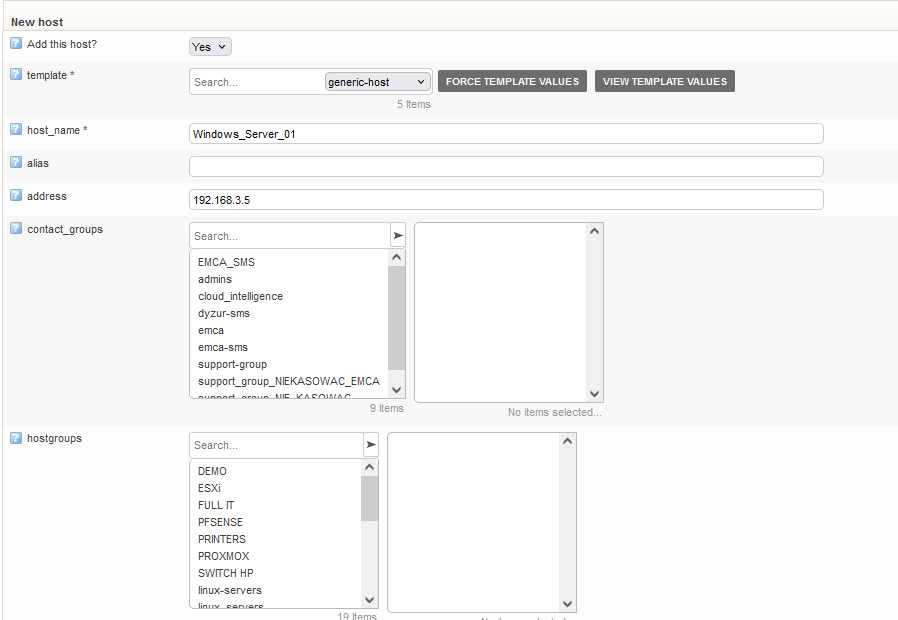
Enter host details:
Provide the hostname, IP address, and other required details.
Save the configuration and perform a test:
Save the new host configuration and perform a monitoring test to ensure that Energy Monitor can communicate with the Windows host correctly.

Step 4: Add services
Add monitoring services such as availability checks, CPU usage, memory usage, disk usage, etc., using NSClient++ as the data source.
Ensure that you use the appropriate NRPE commands or other commands defined in the nsclient.ini file.
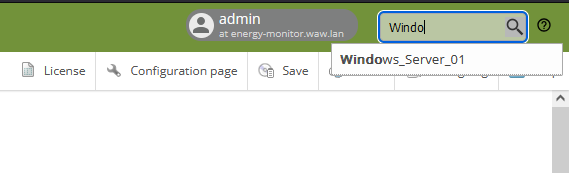
Search for added host:
Use a search bar
Open configuration:
Open configuration of freshly added host from listview:
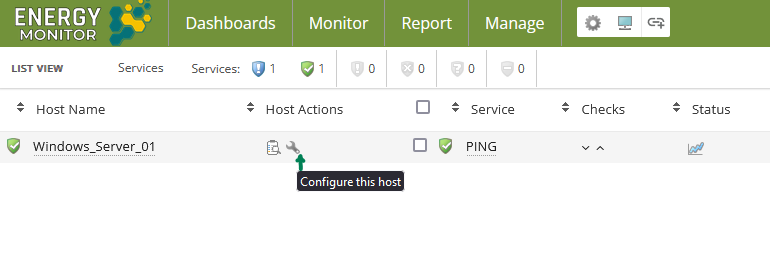
After open host configuration got to it services configuration:
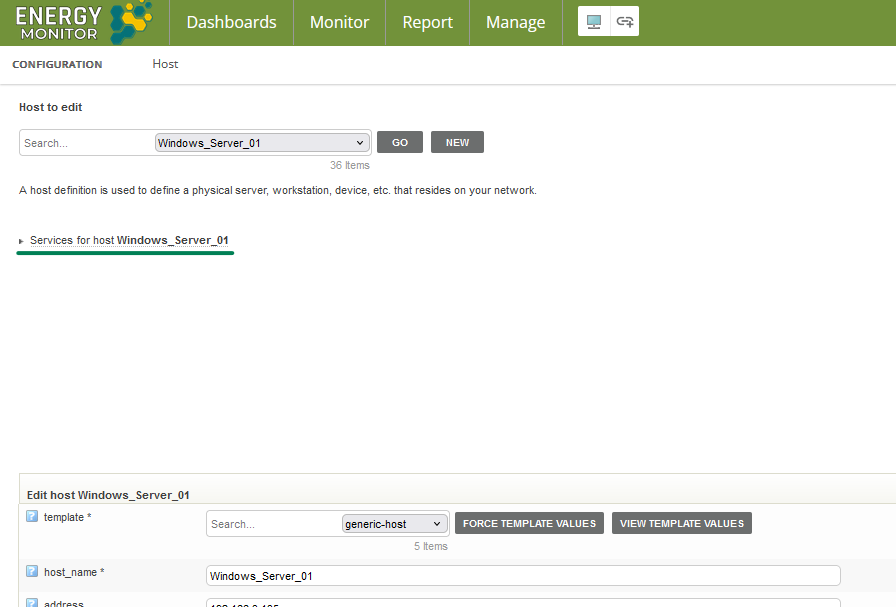
Add service:
Fill service description(reuired)
Choose correct
check_commandto monitor required parameterFill
check_command_argsif required or createCustom Variable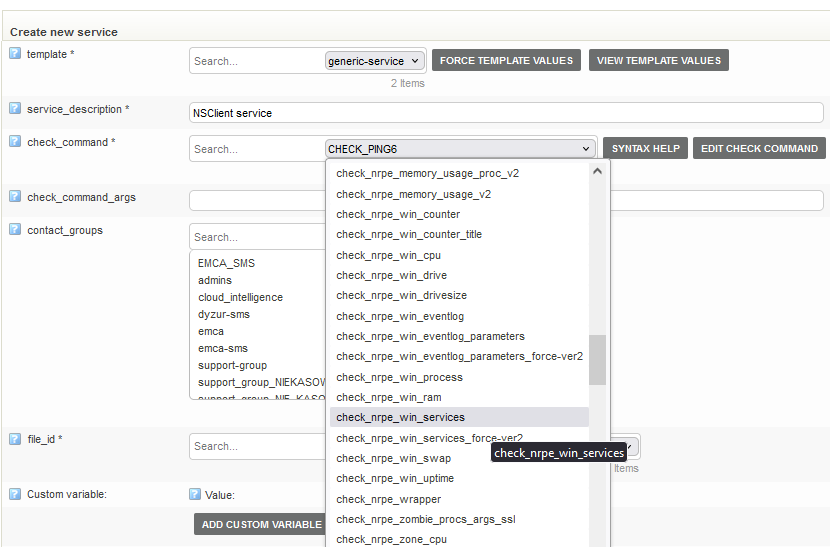
Test if configuration of new service is correct:
After filled up necessary firlds you can check response of service by clicking in
Test This Check: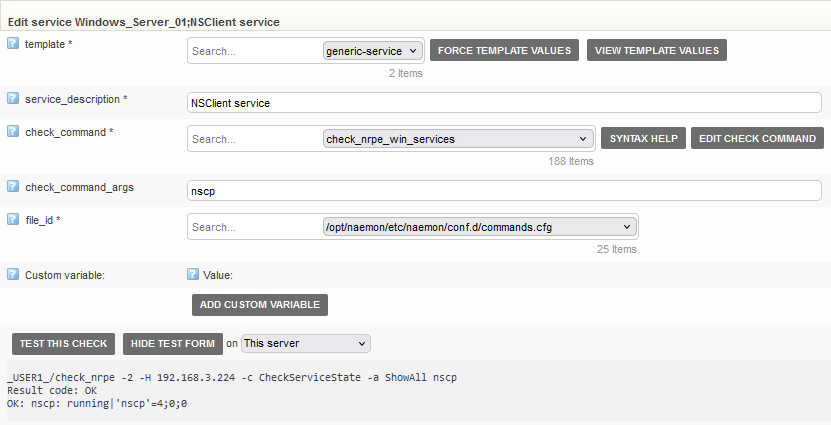
Submit and Save
All changes in configuration(like adding new object) need to be submited by clicking in submit button at the bottom of object configuration page.
Next you need to perform save like at “Add host” step.
Before perform save you can add as many services as you want.
Step 5: Verification and Monitoring
Check the status of the host and services:
Ensure that the newly added host and its services are visible in the Energy Monitor dashboard and that real-time data is being received.
Configure notifications:
Set up appropriate notifications to receive alerts in case of issues with the monitored Windows host.
Procedure for Monitoring Linux Systems with Energy Monitor
This documentation provides a step-by-step guide on how to monitor Linux systems using Energy Monitor. By following these instructions, you will be able to set up monitoring for various aspects of your Linux hosts, such as system performance, availability, and resource usage.
Prerequisites
Ensure that you have Energy Monitor installed and configured.
Ensure you have administrative access to both the Energy Monitor server and the Linux systems you want to monitor.
Step 1: Install NRPE and Nagios Plugins on Linux Host
Update Package Repository:
sudo apt update  # For Debian/Ubuntu
sudo yum update  # For CentOS/RHEL
Install NRPE and Nagios Plugins:
sudo apt install nagios-nrpe-server nagios-plugins  # For Debian/Ubuntu
sudo yum install nrpe nagios-plugins-all  # For CentOS/RHEL
Configure NRPE:
Open the NRPE configuration file:
sudo vim /etc/nagios/nrpe.cfg # Path may vary depending on distribution
Add the IP address of your Energy Monitor server to the
allowed_hostsdirective:allowed_hosts=127.0.0.1,ENERGY_MONITOR_SERVER_IP
Define Commands in NRPE Configuration:
Add or modify commands in the
nrpe.cfgfile to match your monitoring requirements. Here are some example command definitions:command[check_load]=/usr/lib/nagios/plugins/check_load -w 5,4,3 -c 10,8,6 command[check_disk]=/usr/lib/nagios/plugins/check_disk -w 20% -c 10% -p / command[check_procs]=/usr/lib/nagios/plugins/check_procs -w 150 -c 200
Restart NRPE Service:
sudo systemctl restart nagios-nrpe-server  # For Debian/Ubuntu
sudo systemctl restart nrpe  # For CentOS/RHEL
Step 2: Configure Energy Monitor
Log in to the Energy Monitor web interface:
Open a web browser and log in to the Energy Monitor admin panel.
Add a new host:
Navigate to Manage -> Configure -> Hosts.
Enter host details:
Provide the hostname, IP address, and other required details.
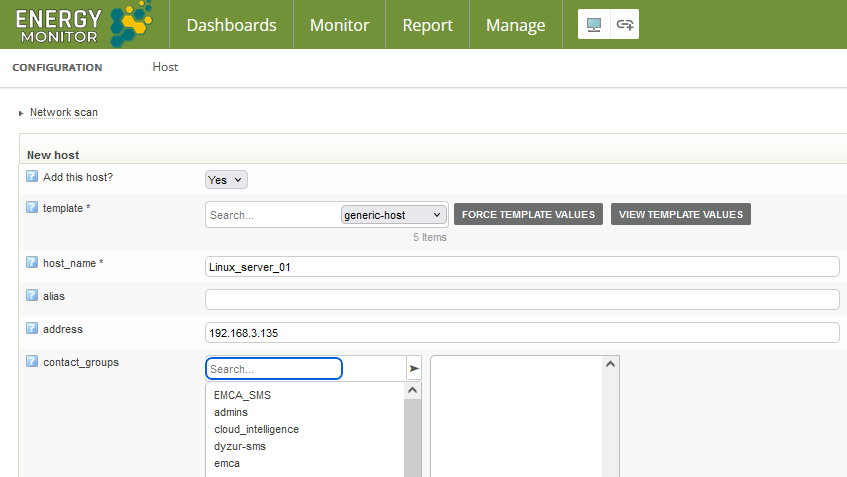
Save the configuration and perform a test:
Save the new host configuration and perform a monitoring test to ensure that Energy Monitor can communicate with the Windows host correctly.
Save Configuration and Apply Changes:
Save your configuration changes and apply them. This will update the Energy Monitor system to start monitoring the new Linux host and its services.
Step 3: Add services
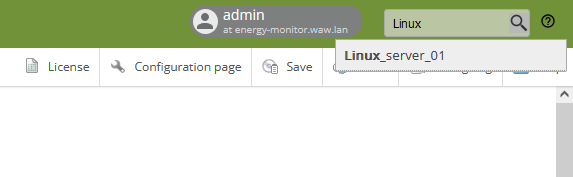
Search for added host:
Use a search bar
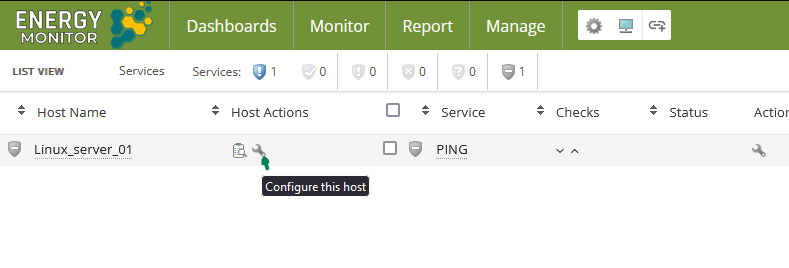
Open configuration:
Open configuration of freshly added host from listview:
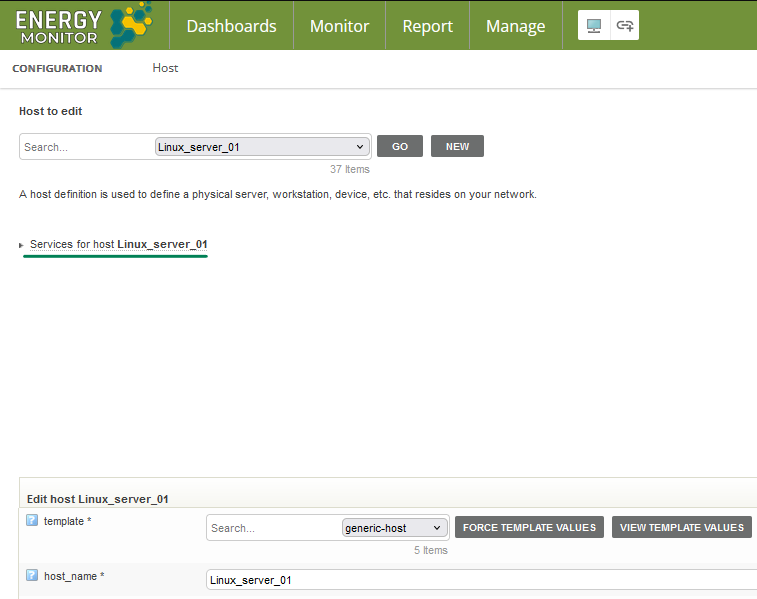
After open host configuration got to it services configuration:
Add service:
Fill service description(reuired)
Choose correct
check_commandto monitor required parameterFill
check_command_argsif required or createCustom Variable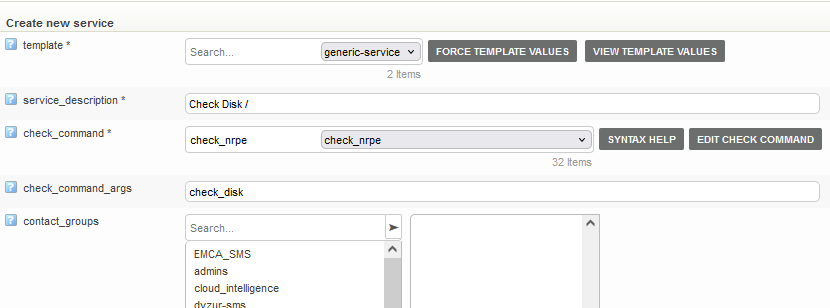
Test if configuration of new service is correct:
After filled up necessary firlds you can check response of service by clicking in
Test This Check: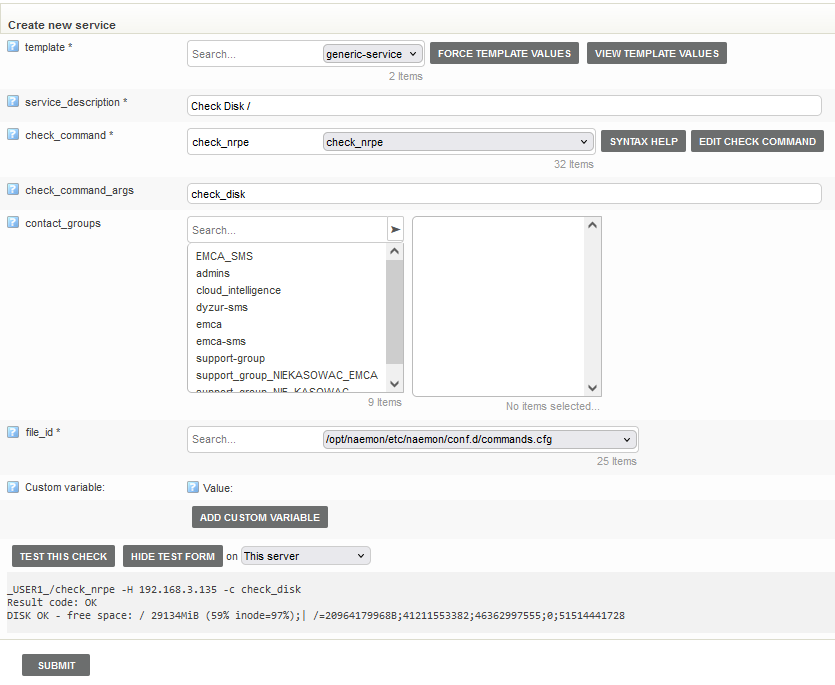
Submit and Save
All changes in configuration(like adding new object) need to be submited by clicking in submit button at the bottom of object configuration page.
Next you need to perform save like at “Add host” step.
Before perform save you can add as many services as you want.
Step 4: Verification and Monitoring
Verify Host and Services Status:
Check the Energy Monitor dashboard to ensure the newly added Linux host and its services are listed and being monitored.
Set Up Notifications:
Configure notifications to alert you in case of any issues with the monitored Linux host. Navigate to
Configuration->Notificationsand set up your preferred notification methods (e.g., email, SMS).
Benefits of Monitoring with Energy Monitor
Centralized Monitoring: Ability to monitor all Linux systems from a single, central location.
Early Problem Detection: Quickly identify performance and availability issues.
Compliance with Security Policies: Maintain compliance with internal and external security requirements.
Automation of Management: Automated data collection and reporting streamline IT infrastructure management.
By following this procedure, you can effectively monitor your Linux systems using Energy Monitor, ensuring high levels of system availability and performance.